
Publishing an address
Review a Solana Address QR Code Before Publishing
Check the encoded value, visible address and destination context when a Solana address is presented as a QR code.
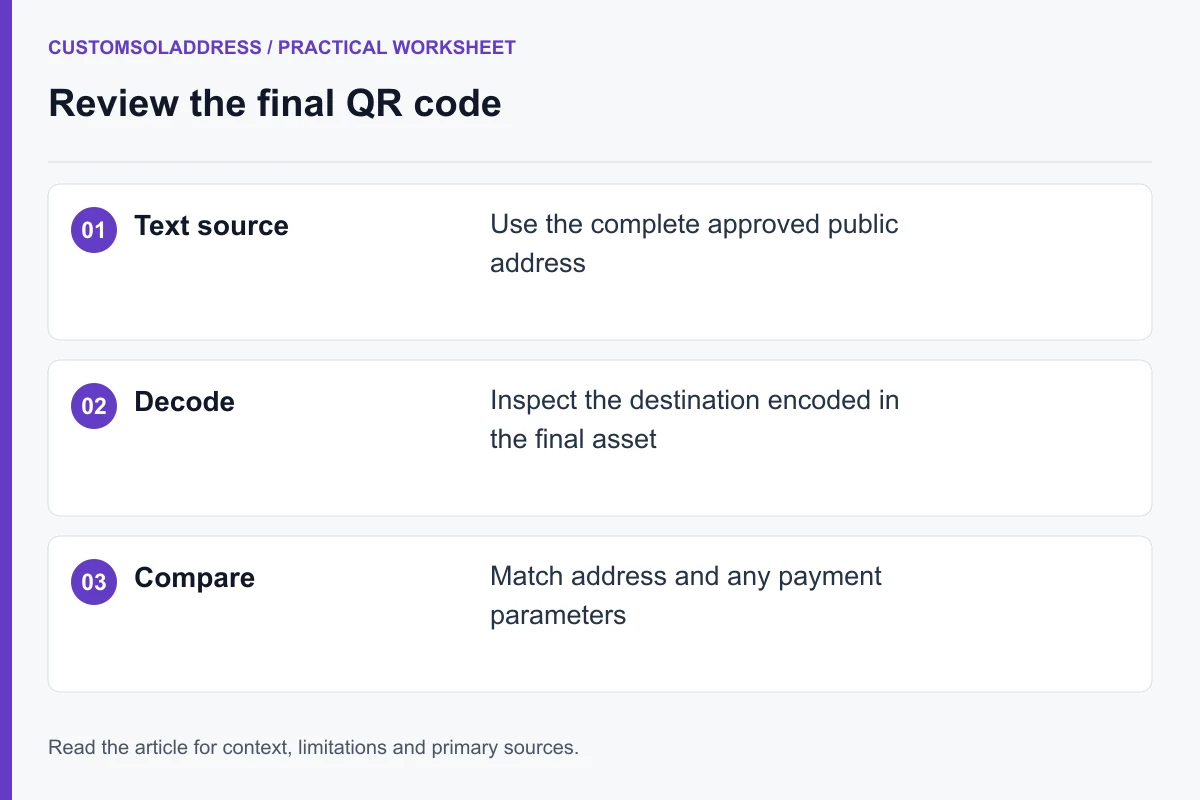
Decide what the QR code should contain
Start by defining the expected result of scanning. A code may contain a plain string or an application-specific URI. These are different formats. Do not assume that every wallet or camera interprets both in the same way. Document the intended workflow before creating the code.
Keep the full public address in the approval record. If your workflow uses a URI, document the expected format and fields separately. This article is a review checklist, not a claim that this site generates QR codes or supports a specific payment standard. To create the address itself, use the Base58 vanity address generator.
Check the encoded and visible values separately
Decode the code with the intended application and compare the complete result with the approval record. Then compare the full address printed beside the code. These are independent checks: changing a label does not necessarily regenerate an existing QR image. The custom Solana address guide lists the display checks to run before printing a code.
A recognizable prefix is useful for orientation but insufficient for approval. The address verification guide explains why a partial visual match should not replace a complete comparison.
Test the published size rather than the source file
A code that scans from a large source image may behave differently after resizing, printing or placement on a busy background. Test the actual published version in the intended viewing conditions. Keep decorative elements outside the code and avoid assuming that a logo overlay is harmless.
For a repeatable review, record the surface, displayed size and scanning application. If the same asset appears in a website and a printed document, treat those as separate checks rather than assuming that a successful screen test covers both.
Replace the code when its source record changes
When the approved address or payload changes, review every place that contains the QR image as well as every place that prints the address. An old image can survive in a slide deck or downloaded PDF after the main page has been corrected.
Keep the review record limited to public information. A private key, keypair file or recovery phrase must not become the payload of a public address QR code. Return to the pattern guide if the underlying address choice is still being decided.
Continue the practical setup
- Verify a Solana Address Before Sending: Checks That Work — How to verify a Solana address before sending SOL or tokens: compare the full string, spot address poisoning, test transfers, account types.
- Solana Address Prefix or Suffix: Which Placement Gets Seen? — Choose between a prefix and a suffix for a custom Solana address: where wallets and explorers truncate, what each costs, and when to combine.
- Open the complete workflow guide to place these checks in order.
- Open the address generator when you have chosen a compatible format and pattern.
Sources and editorial method
The technical references below support the concepts discussed in this article. Examples and comparison worksheets are explanatory, not measured service benchmarks.
Read next
Security7 min read
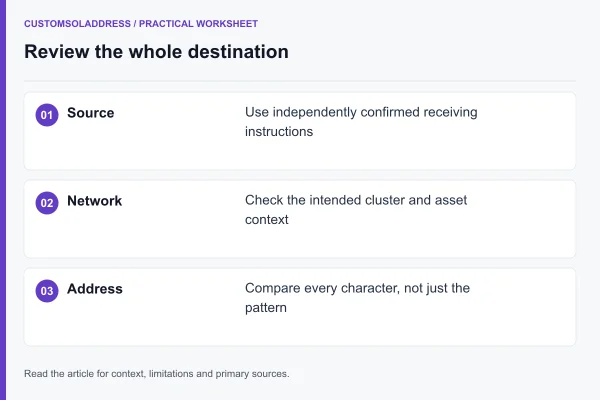
Verify a Solana Address Before Sending: Checks That Work
How to verify a Solana address before sending SOL or tokens: compare the full string, spot address poisoning, test transfers, account types.
Pattern choice8 min read
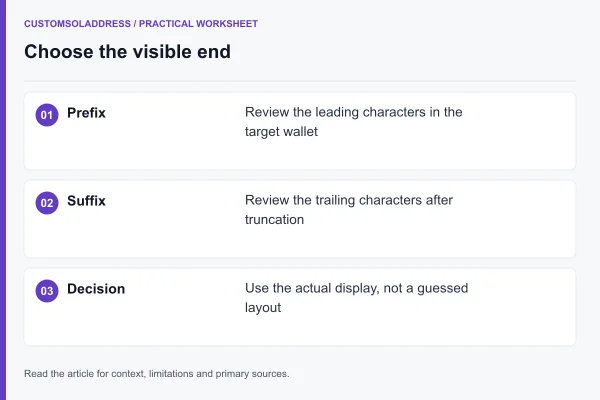
Solana Address Prefix or Suffix: Which Placement Gets Seen?
Choose between a prefix and a suffix for a custom Solana address: where wallets and explorers truncate, what each costs, and when to combine.
Comparison7 min read
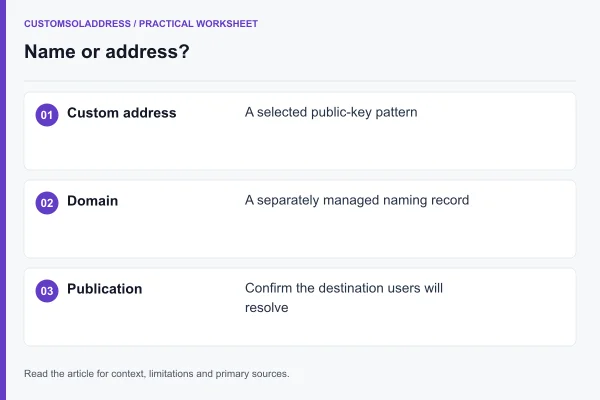
.sol Domain vs Custom Solana Address: Which Do You Need?
Compare a .sol domain from Solana Name Service with a custom vanity address: what each changes, pricing, wallet support and using both.
Comparison6 min read
CustomSolAddress vs solana-keygen grind: Pattern Rules, Key Output and Which to Use
CustomSolAddress vs solana-keygen grind: pattern rules, length limits, letter case, keypair files, seed phrases and offline use, plus where btc-vanity fits.